
Social content, ready to move.
Go from a campaign brief to a reviewed social post without losing the approved asset, account, or next step.
Creation and publishing depend on enabled providers and channel permissions.
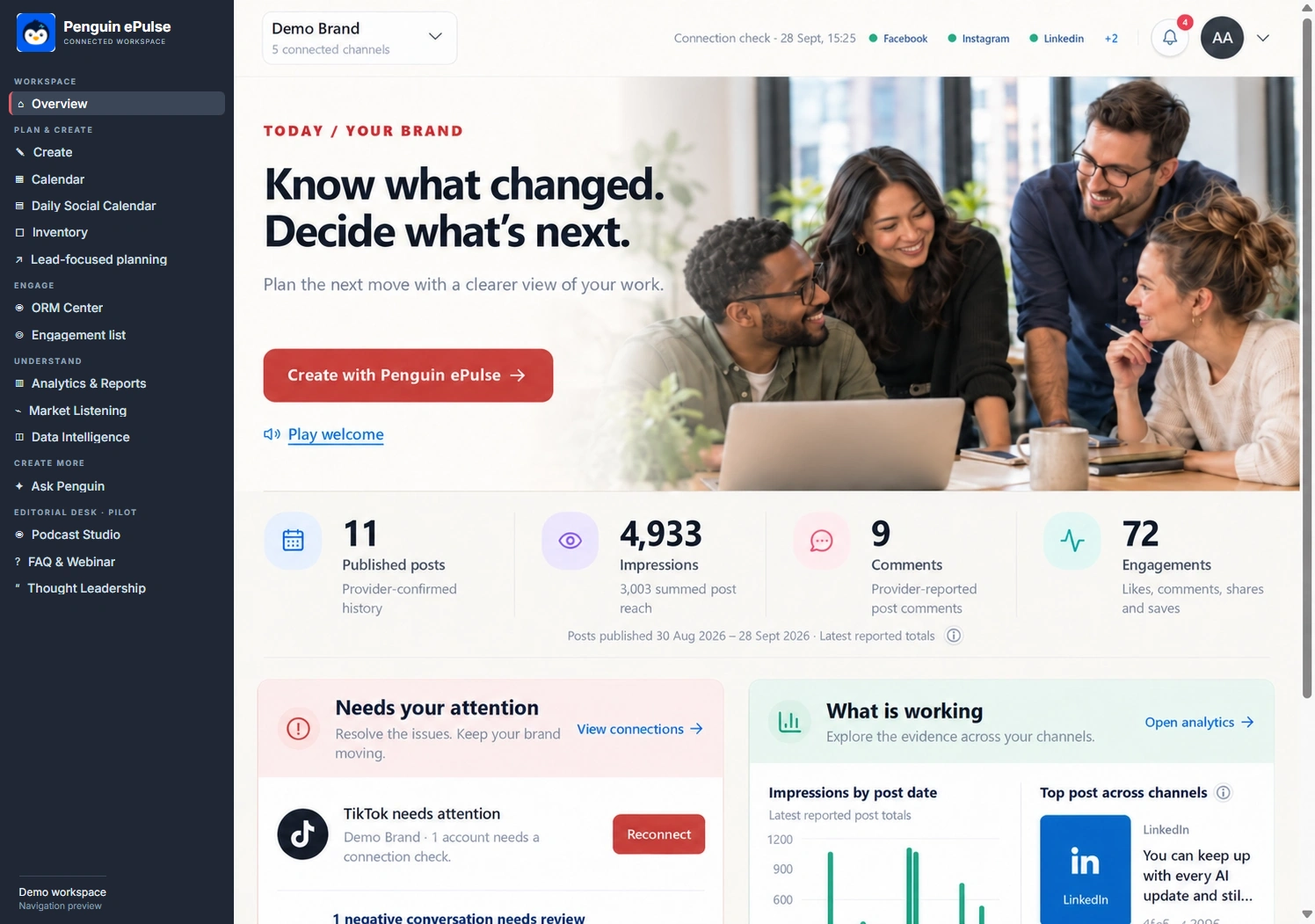 Brief → draft → channel check
What the workflow covers
Give every post a job.
Keep the chosen media beside the draft.
Confirm the account before it goes live.
A draft needs an owner, an asset, and a channel check.
Ideas become saved content. The calendar gives the team a shared plan, while Inventory keeps approved assets findable.
- Calendar and day-by-day content planning
- AI-assisted copy, image and short-video creation where provider access is enabled
- Saved outputs and media in Content Inventory
- Connected-account publishing where permissions allow
- Review before publication, with channel and identity in view
How does a social media content creation workflow work?
Start with the campaign objective, audience and channel. The brief gives the writer and designer a reason for each post; the calendar shows when it is needed. Keep the chosen copy and media together in Inventory so the person publishing can see the approved version.
For a product launch, that might mean one core message adapted for LinkedIn and Instagram, each with its own format and review. A planned date is not proof that a post is ready: check the selected account, asset, owner and supported publishing action first.
Where AI and media fit
Use AI-assisted copy, image or short-video creation only where the workspace has the required provider access. Review factual claims, brand fit, rights and channel specifications before using an output. Uploaded assets can follow the same Inventory and calendar review path.
Compare this workflow with social media publishing and scheduling, then use social media analytics to examine what happened after a post went live.
Questions about creating social content
Can Penguin ePulse create images and short videos?
The workspace supports image and short-video creation or uploads where the required provider access is enabled. Review the generated output and applicable rights before use.
How does the calendar support a campaign?
Set a goal, prepare content for each day, attach the selected media and check the connected channel and owner before publishing.