Lock the offer details
Confirm dates, price, exclusions and inventory with the approved source before making creative variants. Keep local-market differences explicit.
 Penguin ePulse
Plan seasonal retail content, review image and short-video assets, and keep the chosen versions in Penguin ePulse Inventory where provider access permits.
See this workflow in a demo
A retail team has a promotion brief, product images, a short video concept and several channel deadlines. Versions spread across chat and shared drives. A late price change can leave the wrong image attached to a scheduled post. The team needs a reviewable chain from brief to asset to channel.
Put the campaign goal in the Daily Social Calendar, draft channel copy, and keep the selected image or short video in Inventory. Generated media is only available where the appropriate provider and rights are enabled.
Use this view to frame a real evaluation with your team. The industry scenario is illustrative; the screenshot shows Demo Brand example data.
Explore content creation →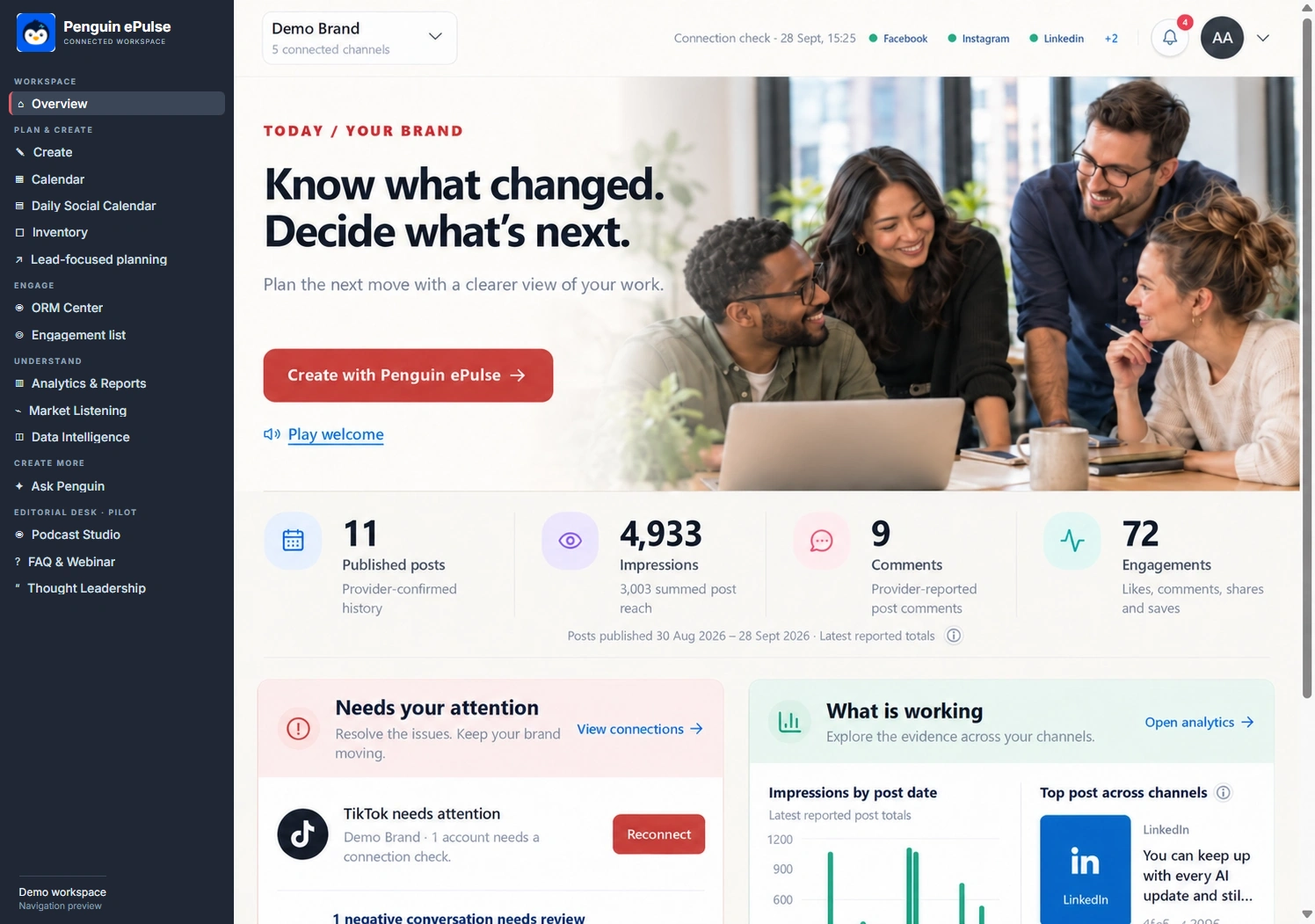
Confirm dates, price, exclusions and inventory with the approved source before making creative variants. Keep local-market differences explicit.
Prepare an image, short video and caption for each relevant channel. Use provider-enabled creation or upload approved media; do not assume every generation format is available.
Open the final image or video, check text, product depiction, accessibility and usage rights, then save the chosen version in Inventory.
Place each approved post in the calendar with its channel and date. Check the connected identity and available publishing action before release.
Compare completed, approved assets and published posts with the original campaign plan. Review product questions and qualified visits separately from impressions.
For the relevant external guidance, review W3C Web Accessibility Initiative image guidance. Confirm current requirements with the responsible specialist before publication.
See the related Penguin ePulse feature, or discuss your workflow in a demo.
No. Generated media depends on enabled provider access, available formats and rights review.
The selected file, channel copy and owner are easier to review when the team can distinguish a working draft from an approved asset.